OHarness for Chrome
Let the OHarness agent work in the Chrome you're already signed into — with every tab it controls in plain view.
Coming soon to the Chrome Web Store.
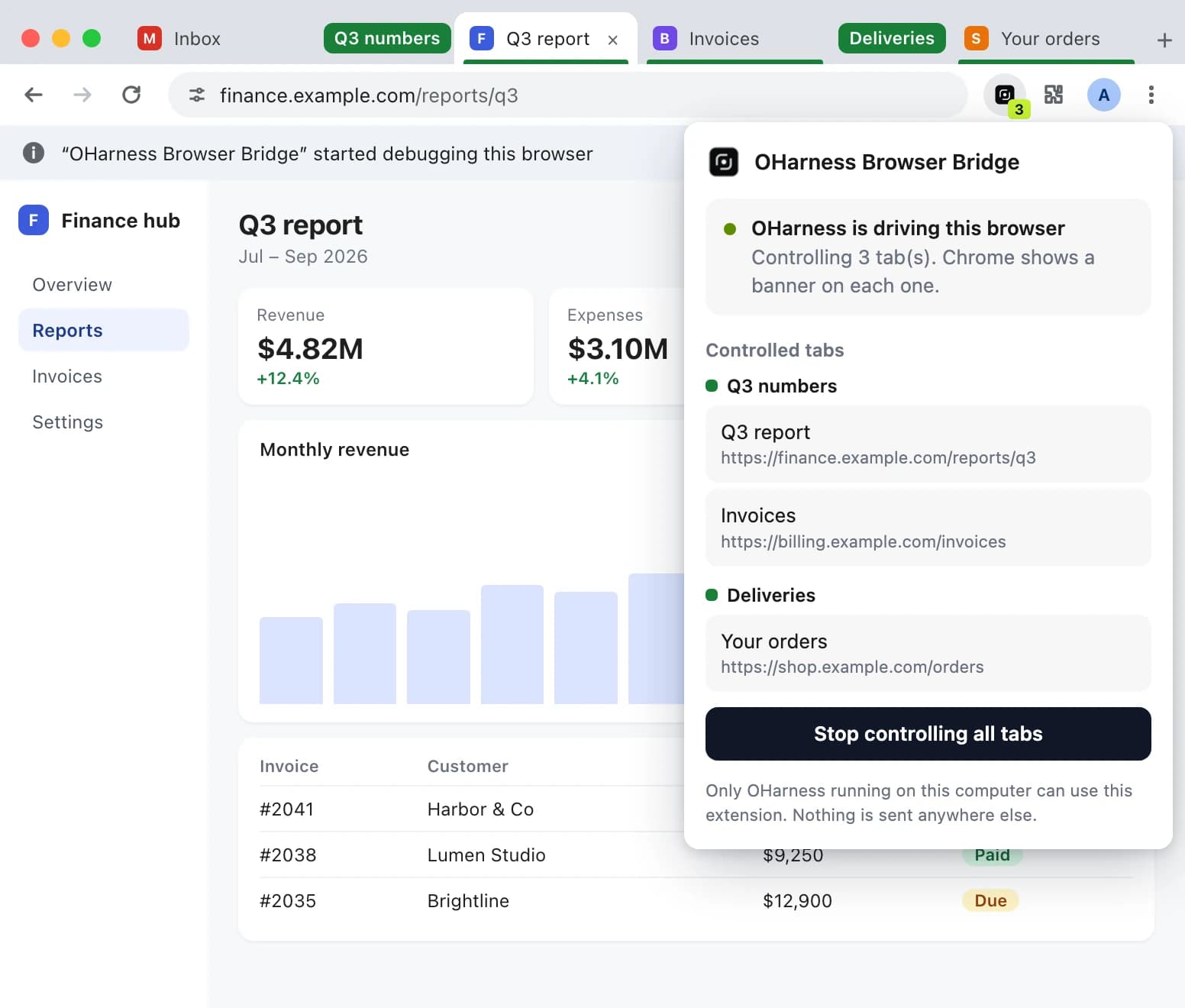
- 0 logins
- Uses the accounts you're already signed into
- Every tab
- Chrome marks each tab the agent controls
- 1 click
- Hands every tab back
- 0 servers
- Talks only to OHarness on this computer
Always visible. Stop any time.
Chrome shows a banner on every tab it drives. Take them all back from the toolbar icon, or one by closing its banner.
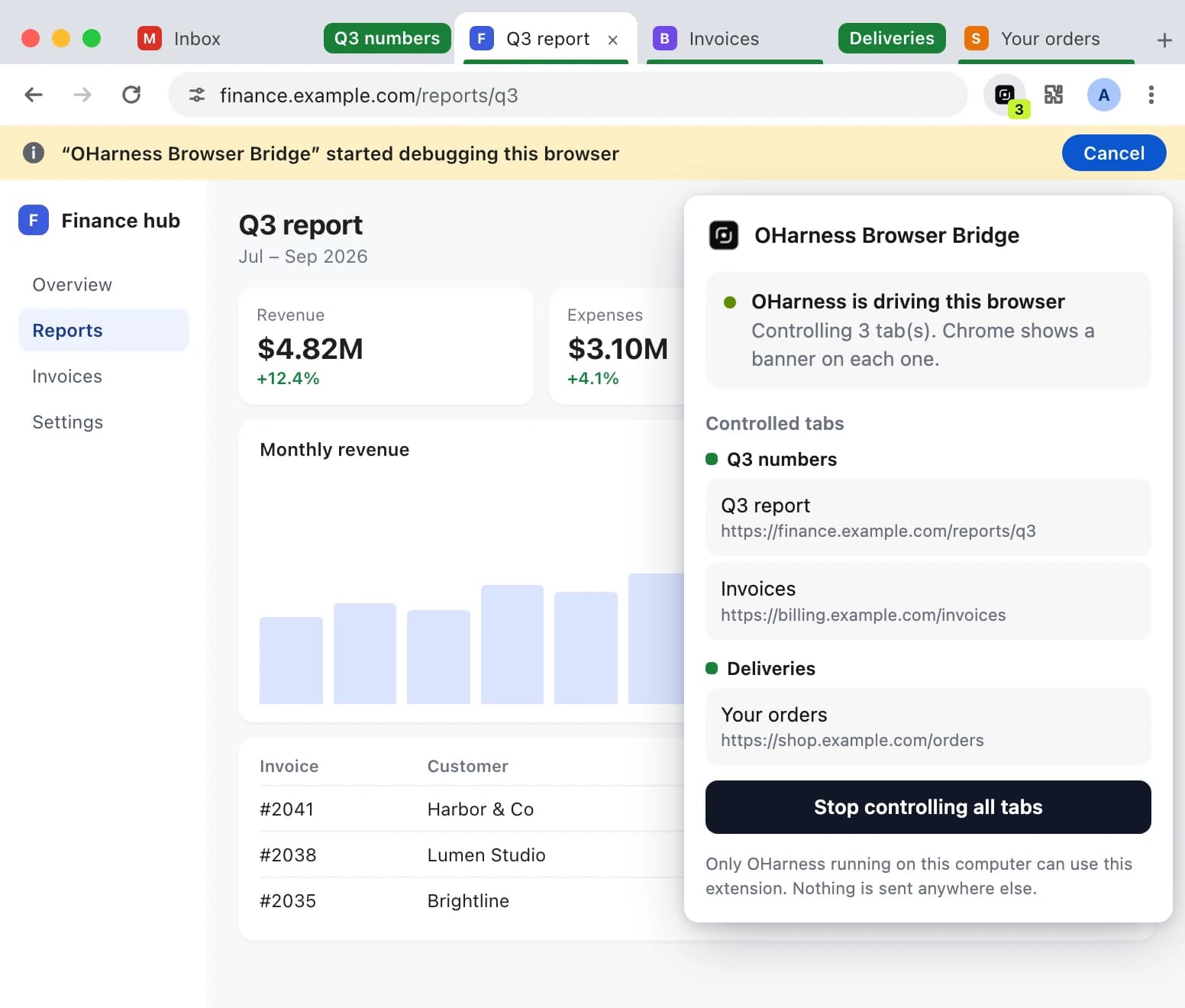
OHarness, right beside the page
Open OHarness in Chrome's side panel from the toolbar icon. It is the OHarness already running on your computer — the desktop app or oharness web — not a second chat.
- Move to a conversation's tab group and the panel shows that conversation.
- “Use this tab” hands the conversation the page in front of you. It asks before acting on the site.
- Your conversations, approvals and settings are the ones the app already has.
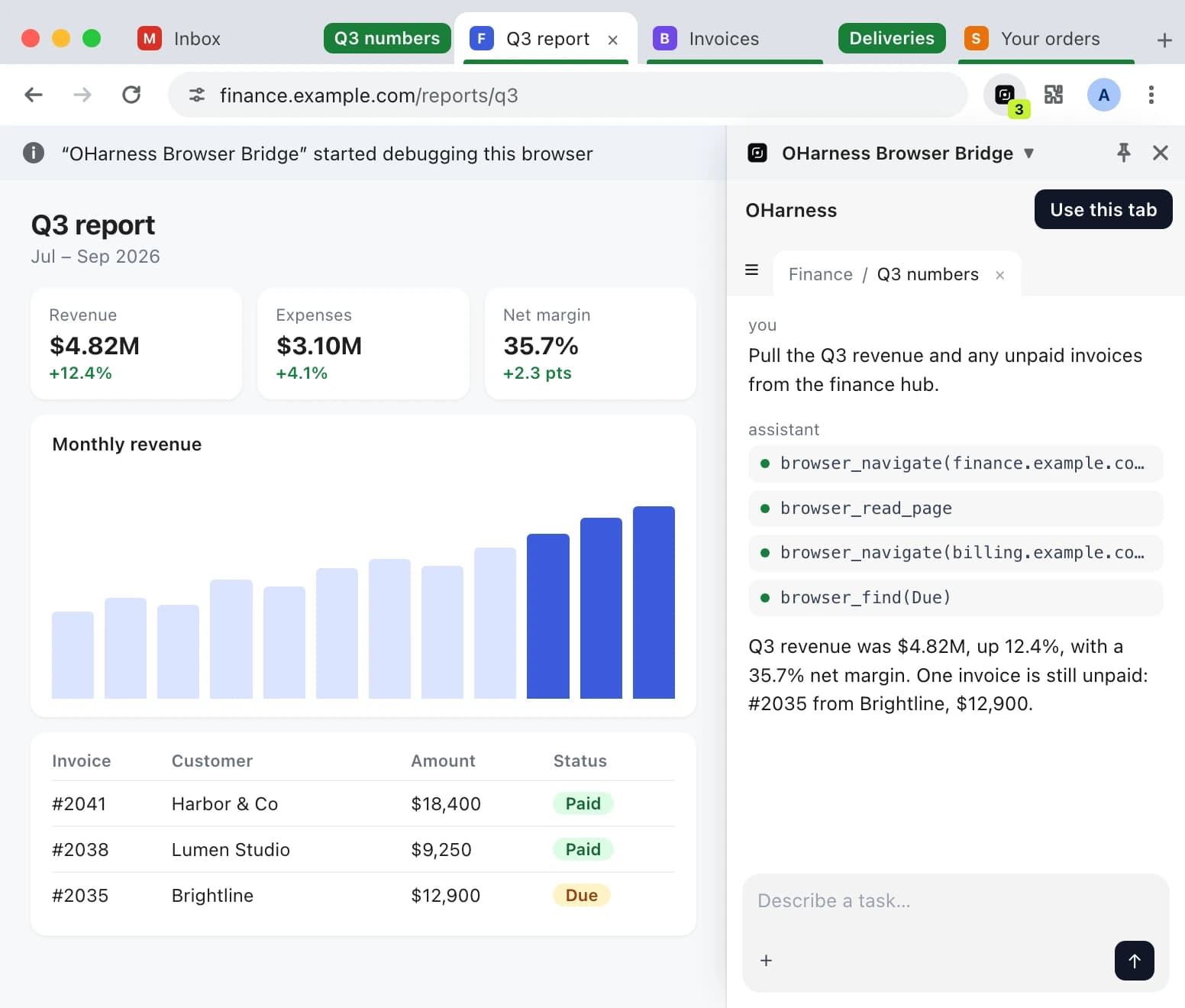
Talks only to this computer
- Connects to OHarness on your machine through Chrome native messaging — no server of its own.
- Reads a page only when the agent works on it, at your request.
- Reads cookies only when you import a site's sign-in, after you confirm which sites.
- Loads no remote code. Uninstall it or quit OHarness, and every tab is released.
- The side panel shows only the OHarness page served on this computer; the key to it stays in memory.
Three steps, about a minute
Add to Chrome
Open the Chrome Web Store listing and click Add to Chrome.
Open OHarness
Start the OHarness desktop app. It sets up the connection on its own. Get the app
Pin the icon
Pin it to the toolbar to see which tabs the agent controls — and to stop it in one click.
Using the npm package instead of the desktop app? Run this once instead of step 2.
oharness-browser-host installQuestions
Do I need the extension to use OHarness?
No. OHarness has a browser of its own for research and testing. The extension is for tasks that need your accounts or a page you already have open — reading your inbox, filling a form on a site you're signed in to.
Which browsers does it work in?
Chrome, Edge and Brave — each installs it from the Chrome Web Store.
Why does Chrome say it “started debugging this browser”?
The extension drives tabs through Chrome's debugger API, and Chrome shows that banner for as long as any tab is controlled. It's the sign that the agent is at work; cancel it to take that tab back.
Can it see my other tabs?
Only the tabs a conversation opened, in its own tab group, and tabs you point it to. It never touches chrome:// or extension pages.
Does it send my data anywhere?
No. It talks only to OHarness on your computer, through Chrome native messaging. It has no server and loads no remote code.
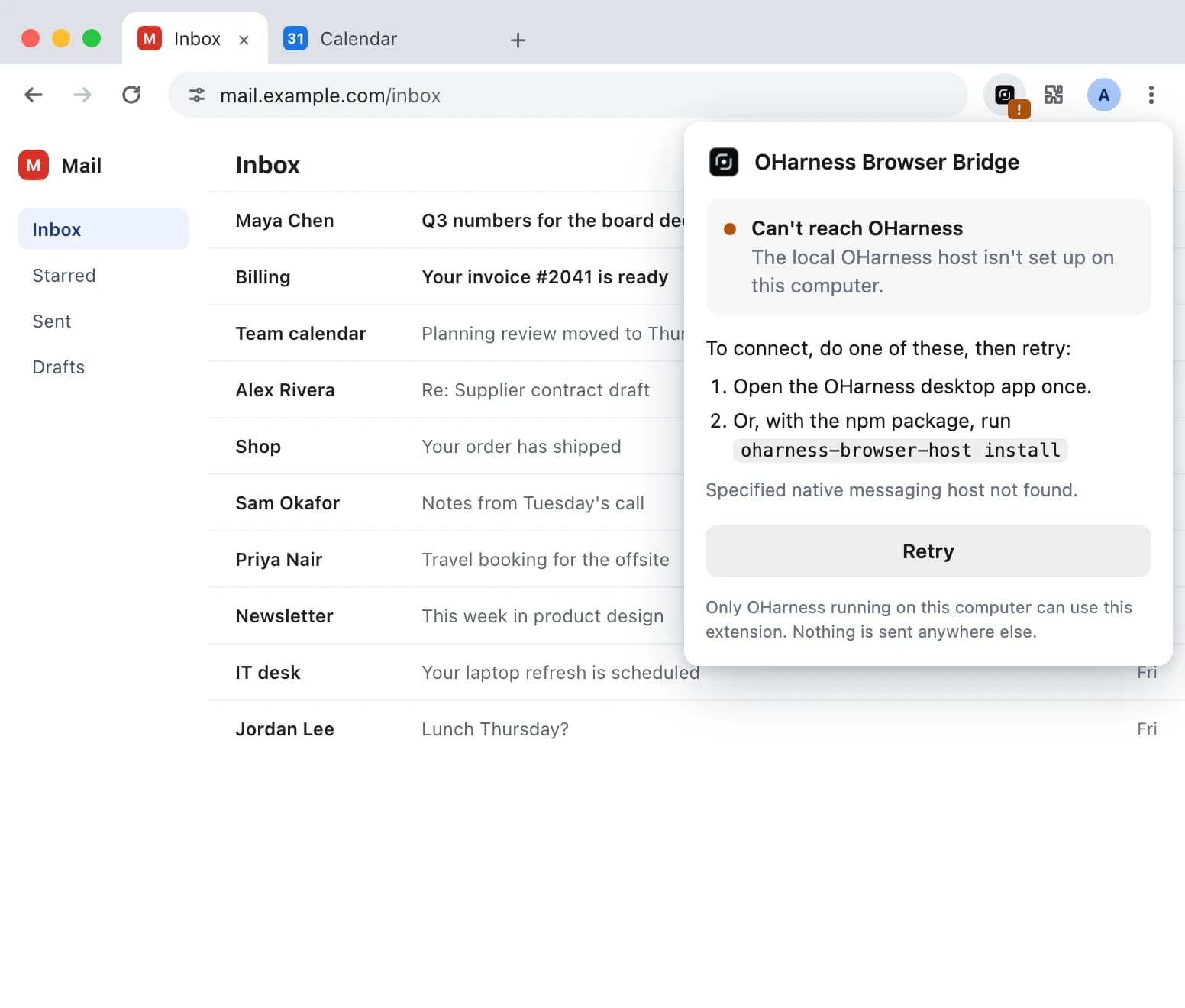
The popup says “Can't reach OHarness”. What now?
Open the OHarness desktop app once — or, with the npm package, run oharness-browser-host install — then click Retry in the popup.
How do I stop it?
Click the toolbar icon and choose Stop controlling all tabs. Cancelling a tab's banner releases just that tab; quitting OHarness or removing the extension releases them all.
Something else? Kontakt