Large workspace images. Vision-capable Official models can receive large images from the Read tool through temporary URLs.
Novità
Cosa è uscito, e quando.
App desktop
Desktop: macOS su Apple Silicon. CLI: macOS, Windows e Linux, senza bisogno di Node.js.
Studio. Generated images preview inline, and the built-in media skill covers reference files, output paths and pending jobs.
Reasoning effort. The composer offers effort controls for supported Official models.
v1.18.9
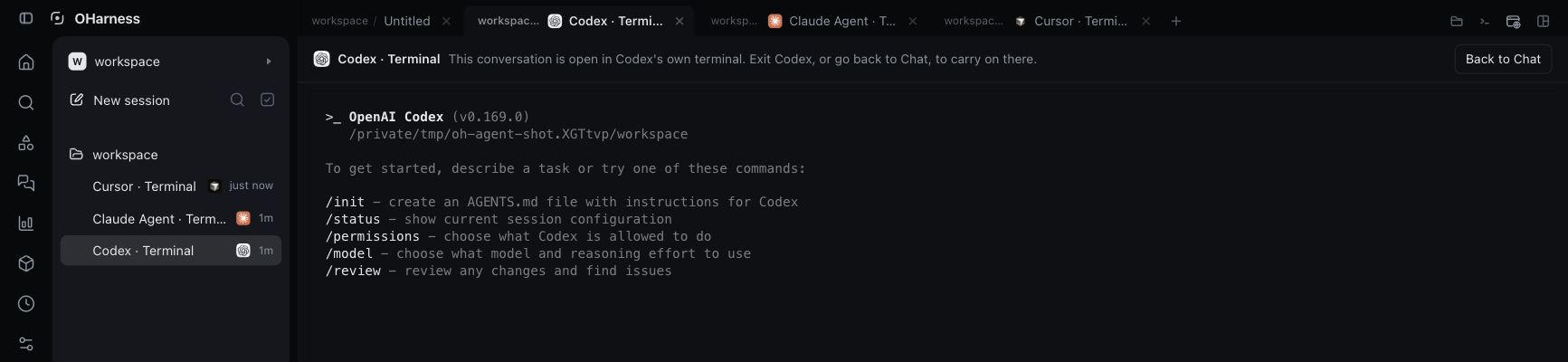
Start Codex, Claude Code or Cursor in its own terminal interface inside OHarness, then pick up the same conversation in Chat.
Launch an agent straight into its terminal. In a new conversation, choose Codex, Claude Code or Cursor and click the Terminal icon in the composer. When you're ready to return to Chat, exit the agent's terminal interface and continue the same session from the composer. The agent picker also supports OpenCode, GitHub Copilot, Hermes, pi, Kimi Code and DeepSeek Harness.
 OHarness
 Codex
 Claude Code
 Cursor
 OpenCode
 Kimi Code
 DeepSeek Harness
 GitHub Copilot
 Hermes
 pi
Model picker. Popular OpenRouter models appear first, with remaining models grouped by vendor. The picker labels exhausted free allowances.
Focus Mode, on by default. Minimal messages is now Focus Mode, and it's on for everyone: each reply's thinking, tool calls and in-between messages fold into one line above the final answer. You can turn it off in Settings.
Seven more languages. OHarness is now available in Japanese, Korean, Spanish, French, German, Traditional Chinese and Brazilian Portuguese. Pick one under Language in Settings.
Minimal messages. A new setting folds each reply's thinking, tool calls and in-between messages into one line, and leaves the final answer. Failures, questions and what the agent made stay in view, and a click on the line shows the rest. It's off by default.
A roomier tab strip. A session's files, terminal and browser buttons sit once at the end of the tab strip, for the session in front, so tabs keep their width and titles.
DO_NOT_TRACK. Setting DO_NOT_TRACK=1 in the environment the app starts from turns off all analytics, the daily count included.
A simpler Settings. Settings is grouped by what you came to do: General, Agents, Memory, Permissions & privacy, Devices & sync, Advanced and About. Each row is one line until you open it, with its switch and status in view, and an arrow on the right takes you to that row's page. A row opens by itself only when something needs you, like iPhone control when you aren't signed in. Usage is in the sidebar, and no longer in Settings.
Quieter Super Agent. A watch no longer raises again what you were already told: it speaks up about the same thing only when something about it changed, so one unhandled mail stops turning into a card every few hours. Super Agent is off until you turn it on in Settings, and switching it off now stops its routines too; they are kept, and run again when you turn it back on.
Folds that slide. Clicking the Super Agent row folds its channels away, and folded it shows how many need you and the latest line. Its channels and the sidebar's groups slide shut and open.
Routines. The sidebar's Routines group is always there, lists every routine's runs, Super Agent's included, and says so when there are none yet. On the Routines page a narrow card no longer breaks a word in two.
Super Agent as cards. Everything is a feed of cards: what needs you, today or this week, each narrowed to one channel with a tap, and failures that share a cause grouped into one card with Sign in or Run again. A channel that has found something leads with its feed, and its settings fold into one line that stays in reach as you scroll. Over a conversation, what still needs you stays pinned above the box, and Super Agent can read what its runs found this week, so you can ask it about them. A brief that reports every time is marked Report; one that finds something to act on stays Needs you.
Templates and tasks. Each channel shows the templates that suit it and an Add picker with search and fourteen templates in shelves. Make your own leads to the box, where you describe the job in your own words. Your tasks show the name you gave them, when they run and how they tell you, with a switch to pause them.
Talk to the Watchdog. Talk to it on the Watchdog page opens its conversation, and it gives times on your computer's own clock.
v1.17.0
Super Agent, by topic. Give work, money and travel a channel each, with its own brief, accounts and alerts, and tell it in plain words what to keep an eye on.
Super Agent channels. Split what OH Super Agent watches by topic, such as Work or Money. Each channel has a brief in your own words, the accounts and mail it is about, its own templates and tasks, how many alerts a day it may send and whether weekends are quiet, and a conversation of its own. Super Agent's own conversation stays the general one. Everything collects what every channel raised, by needs you, today or this week. Make a channel from the sidebar, from a preset or a sentence, and give it a colour from the set or your own.
Tell it what to keep an eye on. Describe a job in plain words, such as "every Friday, see which invoices are still unpaid" or "tell me if a client hasn't heard back in two days", and Super Agent makes it a task of the channel you are in, on a schedule, on new mail or a cancelled meeting, or both. Ask it to move a template ("brief me at 7:30") or to make, rename or recolour a channel the same way. It judges for itself whether something is worth a look or a word; what you set is only how often it may speak.
A calmer Super Agent. While it loads, its mark sits in the middle with a soft light passing over it and one line saying what it is for. The sidebar row leads with what needs you, and routine switches show that they are saving. Free models come first in the model picker, and the branch chip under the box says how many files have changed.
See what the Watchdog did, and talk to it. On the Watchdog page each incident unfolds to its full detail and every note in order: the sweep's findings and the Watchdog's nudges, stops, resumes and reasons for telling you, each with its time. Open conversation goes straight to the session it concerns, or Open routines for a failing routine. A line under the controls says where the Watchdog's own conversation is: an ordinary conversation, marked with its icon in the sidebar, that you can write to.
A tidier Watchdog page. The settings come in three groups, Schedule and budget, What counts as stuck and Before you are told, with compact number fields and their units. Save stays off until something changes. Recent sweeps fold away, and a run of sweeps that found nothing reads as one line.
v1.16.0
OH keeps watch now. Super Agent reads your mail and calendar and speaks up only when something needs you, and the Watchdog keeps your unattended work moving.
OH Super Agent. A new session pinned at the top of the sidebar watches your mail and calendar and speaks up only when something needs you. Connect Gmail, Google Calendar or Outlook, several accounts each, and pick what it does: keep an eye out, a weekday morning brief, a Friday weekly review, Monday bill collection. It tells you about at most three things a day; everything else waits in its activity list. It reads your mail but never acts on what the mail asks.
Watchdog. Unattended work is now watched. A conversation that stops mid-turn is resumed by itself; one that is stuck, looping, failing or spending fast wakes the Watchdog, which looks and nudges, interrupts, resumes or tells you. One switch and one daily budget for all your projects and computers, on by default, and when something needs you and no app is open, your phone is told.
Share sessions with your team one at a time. In a team project each session is Only me or Team, switched from the session header. New sessions start private unless the project says otherwise. Teammates see only what you share, with your name on it.
The browser reads like a browser. The browser pane is one row of tabs with a + for a new one, and the address of the tab in front under it. The buttons are icons, named on hover, and the browser icon has a globe so it reads as the web. When a turn ends, the pictures of the pages it left are smaller and come sooner, and each is marked as a browser tab with its site on hover.
The session list shows sessions. Background tasks no longer open out under their session in the sidebar; they stay in the box's task pill.
Diagrams and charts in the reply. The agent can draw a diagram, chart or small widget as part of its message, in the app's own look, following light or dark mode as it changes. Each one has buttons to open it larger, download it as HTML, or copy it as an image. Unlike an artifact it keeps no versions and adds nothing to the shelf.
Screenshots that point at things. The agent can put a screenshot in its reply at full width with a caption, marked up with red boxes, arrows and numbered badges on what it is talking about, and explain the numbers in the text. Click one for the full-size picture; hover to download it. Browser and computer screenshots can save the picture and find where page elements sit in it, so the marks land where they should.
Commands that keep running. The agent can leave a long command running in the background, such as a dev server, a watcher or a long build or test run, and carry on. When the command exits, its exit code and the end of its output reach the conversation by themselves, waking it if it is idle. Background tasks shows the command's output as it runs and can stop it, along with everything it started.
Fewer wrong approval prompts. A Python or Node script written inline no longer asks to add a folder like /* because of a comment or a stylesheet inside it, and a quoted folder name with a space in it is read as one folder.
The status line under each session title is now the size of the title, so where a session stands is as easy to read as its name.
Quitting mid-turn no longer loses what the tools did. Each tool's result is written down the moment it returns, not once the whole batch is done. If the app quits or crashes while tools are running, reopening the conversation keeps the results that came back. A tool that was cut off is marked as possibly done, so the agent checks before going on, and one that never started is marked as not run. Before, the whole step was dropped, and the agent never learned that a file had been written or a command run.
See what another computer is doing. With sync on, a conversation running on another of your computers shows as busy in the sidebar, "running on" that computer, with its background tasks. If that computer goes quiet for ten minutes it no longer reads as running. The permission trail now travels with the conversation too, each line marked with the computer it came from. Turning sync off, or excluding a project, keeps both on this computer. Older versions on your other computers are unaffected.
Dropped connections are ridden out. When the connection to the model drops before the reply starts, the request goes again up to 10 times, waiting longer each time up to 30 seconds, so a few minutes without network no longer ends the turn. A reply cut off part way is kept and continued from where it stopped instead of written again, and a stream that goes silent for two minutes counts as dropped. One line in the conversation shows the attempt and the wait, and Stop ends the wait at once.
Open in… opens on hover. In a project's menu, Open in… opens its list beside the menu when you point at it; a click or W still opens it, and Esc or ← closes just the list.
This computer stays shown. After the first message the This computer pill no longer disappears when there is no cloud computer to move to, so the folder button sits beside it.
Approval card above the folder row. A pending approval now sits above This computer and the folder button instead of below them.
Approvals above the message box. A tool call waiting for approval is a card above the message box rather than a window over everything, shown only in the conversation that asked; another conversation waiting is marked in the sidebar. Typing what to do instead and sending it refuses the call with those words, which the agent follows.
Add a folder at any point. The folder button next to "This computer" now stays after the first message, so another folder can be added mid-conversation without going through the + menu.
Remove a project from the sidebar. A project's menu has Remove project, which takes it off the sidebar and the project list. Its folder and sessions are kept, and opening the project again brings it back. The menu is also shorter: Files, Terminal, Claude Code and Finder are now under Open in….
Auto mode with a reviewer. In Auto, file edits pass and every other action that changes something is checked by a reviewer model first. Routine work goes through; what you did not ask for, such as deleting real data, pushing, publishing or following instructions found on a page, is stopped with the reason. The mode menu says what each mode lets through.
Select all in the session list. Choose every session shown, or every session in a project, at once.
Work in more than one folder. A conversation keeps its project and can now read and write other folders beside it, each set to Can edit or Read only. Make a folder a Project default and every new conversation in that project starts with it. When the agent is refused a file outside its folders, it offers to add the folder.
Pin chapters yourself. Hover any reply and click the pin to start a chapter at its prompt; click again to remove it. Hovering a reply also shows when it was written.
Continue between computers. Copy a project and its conversation to your cloud computer, or download them to a local folder you choose. Transfer dialogs show the project, destination, and progress together. The folder chooser has dedicated navigation, new-folder, select, and close controls.
Resizable sidebar. Drag its edge to adjust the width; the app remembers your preference. Double-click the edge to restore the default.
v1.12.0
You can code in OH now. Bring an idea. Leave with a pull request.
Less ceremony. More shipping. Open a project and tell OH what to build. It knows your branch and working tree, and the changes view shows the real Git diff, including edits made in the terminal. See what changed before you commit, right beside the conversation.
From “what if” to pull request. Create a branch, commit, push and open a pull request from the Git menu. The branch and PR status live under the composer, so your code and conversation stay together.
A little room to experiment. Give an idea a worktree of its own. Sync with the base branch when you are ready; if there is a conflict, hand it to the agent in the same conversation and review the result.
A conversation can start sessions of its own. OHarness can hand a task to a new session that runs beside the current one, in a worktree of its own if it needs one. When you asked for it, it starts at once; when you named a task without saying where, a card asks "New session" or "Do it here"; and when it spots work nobody asked for, it only proposes it. Sub-sessions hang from their parent in the sidebar on a branch line, each reply comes back to the parent, and a task in progress can move to a new session when you change the subject.
Every turn ends with a next-step box. When OHarness finishes, a short recap closes the turn and, when the next move is yours, one question with a button or two to answer it. The sidebar shows the recap and marks conversations waiting on you.
The plan moves a step at a time, and long sessions get chapters. The checklist above the message box ticks forward step by step. Where the work moves to a new phase, a chapter heading marks it, and a Chapters list jumps between them; new work in the same conversation gets a lighter New task divider.
Routines and wakeups on the cloud computer. A cloud computer now fires its routines and wakeups itself, and wakes from sleep when the next one is due.
v1.10.0
Several conversations side by side in one window. Watch a long run in one pane while you work in another, and answer whichever one needs you, without switching tabs.
Split the window as many ways as you need. Press ⌘\ to open a new conversation to the right, or ⇧⌘\ to open one below, or drag a tab onto the edge of a pane. A window holds up to 16 panes. Auto tile, Main + side and Columns arrange them for you from the layout button at the end of the tab strip, and the dividers drag to any size.
Every pane keeps going. Panes you are not typing in still stream their replies, show a dot while they work, and say when one is waiting for your answer. Click a pane, or its message box, to type there. A small pane becomes a status card with the last two turns, and ⇧⌘↩ maximizes one when you want to read it all.
Move around without the mouse. ⌥⌘ and the arrow keys move between panes, adding ⇧ swaps a pane with its neighbour, and ⌥⌘= re-tiles them. Every shortcut is listed in one sheet, under ⌘/.
A cloud computer of your own. Members can choose to run a conversation on a cloud computer instead of this Mac, and it carries on while the Mac is closed. It sleeps when nothing has used it for a while and wakes in seconds from the sidebar, which lists its conversations by folder beside this Mac's. A project can move to the cloud computer and back, its conversation with it.
The cloud computer's browser, in the Browser pane. The agent's browser runs on the cloud computer. The Browser pane shows it live, Take over works there as it does here, and Import brings a site's sign-in across from the browser on this Mac, only for the sites you tick.
Wakeups and messages from background tasks. OHarness can set itself a reminder in a conversation, once, at a time, or on a repeat, and picks the conversation back up when it is due, even after the app was closed. A routine can now run once at a set time. A task working in the background can send its conversation a message while it carries on, and both directions show in the transcript.
The plan stays in view. When OHarness works through a plan, it shows as a checklist pinned just above the message box, folded to the step it is on, and folds away once every step is done.
A Pinned section. Pinned conversations and projects sit together at the top of the sidebar, conversations in the order you drag them to. Pinned and Projects fold like a project does, and a project's edit and ⋯ buttons appear when you point at it.
Delete several conversations at once. Tick conversations from the select button beside search, from Select in a conversation's ⋯ menu, or with Shift or ⌘-click, then delete them with one confirmation. The phone app can now pin, unpin and delete too.
v1.7.0
Subscribers now get chosen models for free, up to a daily or weekly allowance, and OHarness says so wherever you pick a model.
Free models, marked Free. Models covered by a free allowance carry a Free badge in the model picker and the Models panel. Your account card shows each allowance as "X of Y credits left" with when it resets. Calls on those models draw on the allowance first; past it they are charged as usual, and an empty balance does not stop you while allowance is left.
Campaigns, announced once. When a new campaign starts, OHarness shows it once: a card with its picture, what is free and a live countdown to the end, in your language. Subscribers switch to the free model in one click; everyone else sees what a plan includes.
One paywall for every case. Running out of credits, picking a model that is free for subscribers, or opening the app signed out all lead to the same paywall: what you can do, the plans or top-ups on cards, and one button. Top-ups take any amount within the range, and signing in from it brings you straight back to the plans.
v1.6.0
OHarness now dreams. While you are away, it reads the conversations that have gone quiet and keeps what it remembers about you and your work up to date, on your own words, and never without a way back.
Notes that keep up with you. Correct something once ("we moved the app to SQLite", "I prefer green now") and the note that said otherwise is revised. Say "from now on…" and a new note is written. Only what you said counts as evidence: nothing the assistant said on its own, and nothing memory said back to it.
Sure changes apply, the rest wait for you. A change Dreaming is sure of is applied, shown with the words it came from, and undone in one click. Anything inferred from a single conversation, said about you during project work, or contradicting a note becomes a suggestion you apply or dismiss. Your next conversation opens with what changed while you were away.
Once a day, while you are away. A conversation is read once it has been quiet for six hours, and Dreaming runs at most once a day, when enough has gathered. Switch it on or off in Settings › Dreaming, or press Dream now. Its page shows every run, what it read and what it cost, and the usage page counts it too.
Background tasks under their conversation. A conversation that has started tasks gets an arrow in the sidebar; open it to see what is waiting, running and just finished, and click one to open it, even when that conversation is not the one in front of you. A badge shows while anything is still going, and only a failed task is marked in colour.
Right-click to copy. Right-click a screenshot or picture in the conversation to copy or save it, a link to open or copy it, and selected text or the message box for the usual Copy and Paste.
Bring over what you set up in Claude Code and Codex. Your skills, agents and plugins from either tool work in OHarness straight away, with nothing to copy. Their connectors wait for you under Import, from the + menu or the Connectors and Plugins screens: each one starts when you import it, and a row says first if importing will copy a key. Any skill can be switched off from the Skills screen.
Menus that move. The + menu, its screens and the dialogs behind it slide and settle instead of jumping, and the menu's icons and labels are easier to read in both themes.
v1.3.0
Change how OHarness looks just by asking, and let the agent reach for your apps when a job needs them.
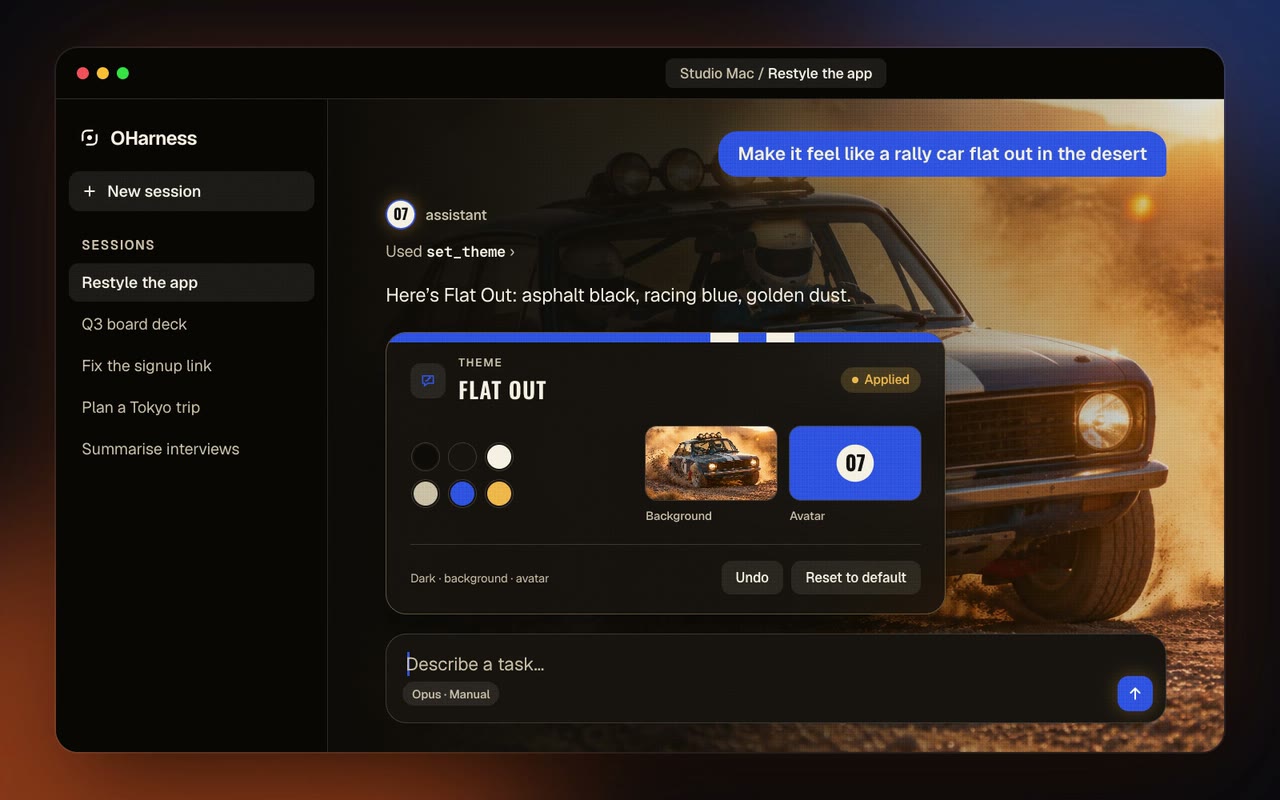
Restyle OHarness by talking to the agent. Tell it how you want the app to look, in your own words: "warmer colours", "a deep blue theme", "use this photo as the background", "give yourself a fox avatar". The agent designs the theme for you, colours, a background behind the conversation, art for new sessions and its own avatar, and can generate the pictures too. Keep chatting to adjust it until it feels right. Each version arrives as a preview card and nothing changes until you apply it. Text stays readable over any picture, Undo and Reset sit under Theme in the account menu, and Cmd/Ctrl+Shift+0 turns a custom theme off in a window you cannot read.
The agent can ask to use your computer. When a request needs one of your apps, the agent asks to switch Computer use on for that conversation, and the request reaches a paired phone too. Settings › Computer use chooses between asking first, switching on automatically, or only when you turn it on.
See when the agent is at work. While it uses your computer, the edges of your screen glow, on every display, until it finishes. When it works in your own browser, the tab it is in glows the same way.
A cleaner project picker. Each project shows its folder, the current one has a tick, and rename, export and remove sit behind a ··· menu. Arrow keys and Enter pick a project; update prompts and confirmations now use the app's own dialogs.
Computer use reads the fine print, on every screen. The agent zooms into part of a window to read small text at full resolution, and sees and works with apps on a second monitor.
Small improvements under the hood.
Sharper next-message suggestions. The grey guess in the message box comes from the model you're talking to, and it knows what the agent just changed, ran and failed at, so it offers the step that actually comes next.
Your next message, one Tab away. After a reply, a grey guess at what you'll send next appears in the message box; Tab takes it, typing replaces it. "Suggest the next message" in Settings turns it off.
Keep generated media online. Images, video and audio can be saved into collections in your OHarness account, or your team's, so they stay available from any device instead of expiring after a few days — as they are made, or later. Each account has 2 GB; files still land in the project either way.
Make a character move like a clip. Kling motion control takes a still of a character and a short video of a movement, and makes the character perform it. Local files can be uploaded as references for any model.
See where a turn left off. When a turn used the browser, the pages it ended on appear under the reply, the way Computer use windows already do. Up to five sit in a row, the rest one click away, and each opens full size to step through. One setting, "Screenshot when a turn ends", turns it off for both.
Your Claude plan, through Claude Code. Start a message with @claude and it goes to your own Claude Code on your Claude account, with its replies and tool calls in the conversation; each reply opens its session in Claude Code. Turn Claude Agent on in Settings. The project menu also opens Claude Code in a terminal tab.
Sign in with ChatGPT and OpenRouter. Use a ChatGPT Plus or Pro plan, or connect OpenRouter, with one click in the models panel.
What a provider has cost. Provider cards show roughly what was spent with each over the last 30 days.
Open OHarness from a link. The app now answers its own URL scheme, oharness://, so a web page, a document or another app can launch it and jump straight to the right place — oharness://new?prompt=… opens a new session with the prompt already in the box, for you to read and send.
v1.1.4
Hand work to parallel subagents and keep talking. They run in the background, report back when they are done, and can be watched, stopped or redirected — from your Mac or your phone.
Background tasks: parallel subagents. The agent can split work across subagents that run in parallel while the conversation goes on — each in its own worktree when it edits files and with its own browser, so they never trip over each other. Their results come back into the conversation on their own. Rows over the message box show what is running; open one to watch it work, stop it, or send it a message.
Background tasks on your iPhone. Over Remote Control the phone shows the same tasks: the results arrive as cards in the conversation, and each task opens to its own page where you can follow it, stop it or tell it something. An approval card says which task is asking.
Fresh starter prompts. The start page suggests concrete things to try, and they change each time.
An expired sign-in no longer keeps retrying in the background.
See how full the context is. A ring under the message box shows how much of the model's window the conversation uses, from the first reply. Click it for the breakdown — system prompt, tools, messages, free space — and where automatic compaction starts. /compact works in every conversation.
Fixed a few things to keep you safe.
v1.1.0
Your Mac, in your pocket. Start and steer conversations on your Mac from your iPhone, talk instead of typing, and run a second task beside the first.
Control your Mac from your iPhone. Turn on Remote control in Settings and the OHarness iPhone app can start and steer conversations on this Mac, with its files, tools and models. Phones pair with a code shown on both screens, and everything between them is encrypted end to end — the relay in the middle only ever sees ciphertext.
Dictation. A microphone beside send: speak, and the words are transcribed, tidied and put in the message box — in Chinese, English and more.
A parallel task in a worktree. Start a second task beside the project — a git worktree on its own branch, or a copy of a plain folder — so two pieces of work never touch the same files. When it is done, merge, push with a pull-request link, or apply the copy back.
Computer use. The agent can see and operate the apps on your Mac in the background — clicks, typing and menu commands go to the app without taking focus from what you are doing. A virtual cursor shows where it is working, a floating card shows the window live, and each step's screenshot appears in the conversation.
Attachments as cards. Images, videos and files sit above the message box with previews; a video you send plays in its message. PDFs reach the model whole, and other files reach the agent.
Search sessions and files. The sidebar searches your sessions, and the files pane searches the whole project.
Modes that stay put. A conversation keeps the permission mode it was left in, and new ones start in the last mode you chose.
A new window layout, with the rail and the top bar as one frame and Home at the top of the rail, and a sidebar that folds away to give the page the whole window.
Sessions in the sidebar, searchable and loaded as you scroll, and usage by model drawn as bars that show each model's share and tokens.
Usage from your account, chat and generated media together, split by kind, and a page with every session, searchable and loaded as you scroll.
The OHarness extension from the Chrome Web Store connects to the app, and "Get the Chrome extension" in Settings opens its listing.
Create images, video, speech and music. Sign in to your OHarness account and ask for one: the OH Creative Media Generator plugin uses the same credits as chat, and what it makes appears right in the conversation — pictures and video inline, audio in a player card — saved into your project.
A files pane and a terminal open beside the conversation, and the sidebar collapses when you want the room. Check for Updates and the release notes are in Settings.
The agent can use a browser. A built-in browser beside the conversation whose sign-ins survive a restart, or your own Chrome through the OHarness extension, which can also open the app in Chrome's side panel. Auto, the default, picks per task, and each browser asks for its own approval per site.
Release notes in the app. "Release Notes" in the menu, and after an update the sidebar says what is new.
Messages typed while the agent works are kept. They queue above the composer, and Send now hands one to the turn already running. The composer can be dragged taller.
Teams. The account menu picks whose credits the next call spends — Personal or a team — with Subscribe and Top up beside it.
Skills page, / for skills and @ for files in the composer.
Media generation, ChatGPT (Codex) sign-in and the creator skills, with vendor marks in the model picker.
Pacchetti npm
oharness, @oharness/engine, @oharness/server e @oharness/sync. Condividono una versione e si muovono sempre insieme.
Studio. Image previews display inline, and the built-in media skill explains how to choose models, use references and collect generation jobs.
Install without npm. The CLI ships as a self-contained build for macOS, Linux and Windows, on x64 and arm64, with Node bundled. curl -fsSL https://oharness.ai/install.sh | sh on macOS and Linux, irm https://oharness.ai/install.ps1 | iex on Windows. oharness update updates a copy the way it was installed.
Super Agent channels. Split what the agent watches by topic, each with its own brief, accounts, tasks and alerts, and describe a job in plain words to make it a task. What it finds shows as cards, and it tells urgent from needs you. It is off until you turn it on in Settings.
Seven more languages. Japanese, Korean, Spanish, French, German, Traditional Chinese and Brazilian Portuguese, chosen from a Language picker in Settings.
Focus Mode. Each reply's thinking, tool calls and in-between messages fold into one line above the final answer. It is on by default and can be turned off in Settings.
The agent can look at a video. It samples frames from a clip and shows them as one image, each marked with its time.
Excalidraw is an official connector.
Opening a project no longer runs anything from it. A repository's oharness.config.json can no longer start MCP servers or hooks, schedule routines, redirect provider requests or loosen permissions; it can still tighten them. Commands the agent runs no longer see provider API keys (OHARNESS_SHELL_PROVIDER_KEYS=1 passes them), and a command that reaches the OHarness folder always asks, bypass mode included.
OH Super Agent. A session pinned at the top of the sidebar that watches your mail and calendar and speaks up only when something needs you.
- Opened empty it is a welcome: connect Gmail, Google Calendar or Outlook, several accounts each, every one renamable and switchable on or off for the agent, and pick from templates.
- Templates are ordinary routines marked
assistant: Keep an eye out (on by itself once the first account is connected), a weekday morning brief, a Friday weekly review and a Monday bill collection. - Quiet by design: a run is announced only when its reply starts with
[notify], at most three a day; the rest goes to its activity list. Runs are read-only, and mail is read as data, never as instructions. - New mail starts a look within a minute, at most one every 10 minutes.
- Routine crons can name a time zone (
timeZone), so the agent's hours hold on a cloud computer running in UTC. - Engine additions: cloud connector
accounts,link,namedand anaccountoncloud_app_execute;ScheduleDefinitiongainsassistant,template,quietandtimeZone.
The browser pane reads like a browser. One row of tabs with a + for a new one, then the address of the tab in front; the buttons are icons with their names on hover. A new tab opens blank at the end of the row with the cursor in the address field, and tabs keep the order they were opened in. When a turn ends, the pictures of the tabs it left are a quarter the size they were on a Retina screen and all taken at once, and a close look at one part of a page no longer stands in for a picture of the whole page.
Share sessions with your team one at a time. In a project synced with a team, each session is now Only me or Team, switched from the session header. New sessions start private, unless the project's "Share new sessions with the team" setting is on. Your own devices still see all of your sessions. Teammates see only what you share, with your name on it. Making a session private again removes it from teammates' apps, but what they already read can't be taken back. Sessions that were already on the team feed stay shared. The Watchdog's conversation is never shared. Needs the updated sync server.
Watchdog. A builtin runtime plugin, watchdog, watches a project's unattended work: conversations pursuing a goal, routine runs, and sessions another one started.
- Sweep. Every minute it turns what it reads into signals: a machine that went quiet mid-turn, a turn cut off and not resumed, a routine failing, the provider giving up, a turn limit hit, the same call or error again and again, no progress, spending fast.
- Repair. A cut-off turn is resumed by code. Anything else opens an incident and wakes the project's Watchdog conversation, a session with tools of its own, to look and act: nudge, interrupt, resume, escalate.
- Cost. It calls a model only when something is new or due. It carries a short prompt and only the tools it needs, about 2.7k tokens per call where a coding conversation carries about 20k. It keeps its own context short, caps interventions, and has a daily budget.
- One for the account, on by default. One switch, one budget and one conversation for every project and machine. It is on until switched off, with cautious defaults: 500k tokens a day, and a look at what is still open every 30 minutes. The first time it acts, the person is told once.
- Each machine sweeps the work it runs and reports through the account's own sync feed.
- One machine, a cloud computer first, keeps the incidents and does the thinking.
- A nudge for a conversation on another machine is carried out there, never on a synced copy. Its answer is noted on the incident, and one that failed is brought back to the Watchdog.
- A cloud computer that stops reporting with work on it is an incident.
- Phone push, the computer's half. When a permission, a question, a finished turn or the Watchdog is waiting and no phone or page is open, the server asks the gateway (
POST /api/v1/push/notify) to tell the account's phones. It sends only the kind, this computer's id and the conversation's id. "Notify my phone when something needs me" under Remote control turns it off. The gateway's sender and the iPhone's registration land in OHarness_Cloud and OHarness_iOS. - Engine additions:
SessionMeta.roleandSessionMeta.lastStop;Tool.roles, andTool.selfLimitedfor role-gated tools whose own limits make a permission dialog redundant;- prompt sections that are told which conversation they are read for;
- a
"watchdog"relation for session messages.
Replies are drawn as Markdown in the terminal. Headings and bold are bold, lists and quotes are indented and marked, code is set apart in colour (the theme's green where the terminal says whether it is dark or light), links are underlined with their address after them, and a table is drawn aligned, or as header: value lines when it is too wide for the window. A reply still streaming in reads right as it arrives.
← stops at the agent view. ← on an empty box opens the view, and inside it now does nothing: the view is the top level. Esc, or Enter on this conversation, goes back. Before, ← went back too, so held down it flipped between the two.
Opening the agent view makes no session. The window's conversation is listed under Recent sessions once it has a message, not as an empty "(untitled) this one" row the moment the view opens.
Stopping stops a command that was about to start. A Ctrl-C (or Ctrl-X in the agent view) that lands while Auto's reviewer is deciding no longer lets the call start anyway: a tool allowed after its turn was stopped is recorded as not run, and foreground bash honours a stop that came before it began. Before, a foreground command such as sleep 60 ran to its end and the turn waited for it.
A stopped session says so. In the agent view, a session stopped with Ctrl-X is listed under Completed as stopped, rather than with no word on how it ended.
The agent view starts sessions. A box at the bottom of oharness agents takes a first message; Enter starts a session that runs beside the window's conversation, in the same process, with its model and permission mode, and the window stays put. Tasks and sessions now share the groups Needs input / Working / Completed above Recent sessions, and a session started here is under Needs input while its permission question is open. Since letters type into the box, the view's actions moved to Tab (reply), Ctrl-X (stop) and Ctrl-D (hide).
Agent view in the terminal. oharness agents, ← on an empty box, or /tasks opens a screen of the conversation's background tasks, grouped Needs you / Working / Done, over the recent sessions. A task can be opened (its conversation, or a shell command's output, live), messaged, stopped or hidden; Enter on a session moves the window to it. Ctrl-C now clears typed text before it interrupts or quits.
Commands that keep running. bash takes background: true: a dev server, watcher or long build runs on while the turn goes on, and its exit code and the end of its output come back as a task notification, waking an idle conversation.
A conversation can start sessions of its own. session_start, session_offer, session_message, session_handoff and session_dismiss hand work to a new session beside this one, in its own worktree when it needs one, ask the person first when they named a task without saying where, and carry replies back to the parent.
How a turn ends. wrap_up closes a turn with a recap and, when the next move is the person's, one question with buttons; mark_chapter puts chapter dividers and a table of contents in long sessions; todo_write moves a step at a time (advance, done/start, scope). Every frontend draws them from the same events; [Frontends](docs/pages/frontends.md) has the table.
Pictures in the reply. visual draws a diagram, chart or small widget inline, apart from artifacts. show_image puts a screenshot in the reply, and annotate_image marks it up with boxes, arrows and numbered badges.
Auto mode has a reviewer. In auto, edits pass and every other action that changes something is checked first by a reviewer model (smallModel, or the session's), which stops what the person did not ask for and says why.
More than one folder. A conversation can read and write folders beside its project, each editable or read-only, and a project can make one a default for every new conversation.
Dropped connections are ridden out. A request that fails before the reply starts is retried up to 10 times with backoff up to 30 seconds; a reply cut off part way is continued rather than rewritten; a stream silent for two minutes counts as dropped.
Tool results survive a crash. Each result is written down as it returns, so a process that quits mid-batch keeps what came back, and marks a tool cut off as possibly done.
Sync carries more. The permission trail travels with a synced session, marked with the machine it came from, and so does what each machine is doing in it: whether a turn is running there, and its background tasks.
Cloud computers. oharness-web --cloud-host runs the server inside one person's VM: it listens on loopback, dials the relay as a host and admits only the devices its launcher paired. The VM's browser is the builtin Chromium provider on a virtual display of its own, and computer use runs there too: assembling it (Cua Driver first, the helper as fallback) moved into the engine as computer/assemble.ts, which the desktop app and --cloud-host both call, and the Cua adapter learned Linux. Memory sync works on a machine token, with its owner given beside it (OHARNESS_CLOUD_OWNER).
Where a message runs. The web frontend's run-location menu offers this computer, the account's cloud computers and its other computers. Another computer comes in once the person at it allows it, with the same code shown on both. A project moves to a cloud computer and back, packed without its dependencies and caches, and its conversation comes with it as a copy.
Signing in without the model seeing the password. browser_sign_in takes a page's sign-in fields and a reason and shows the person a form of its own, outside the conversation. What they type is set into the fields over CDP and dropped; the model is told only whether they filled it in. The server answers it through POST /credentials, and nothing of it reaches history or logs.
Computer use in the terminal. The CLI uses the platform layer of the installed desktop app (or one named in the environment), and /computer shows and switches it. With nothing on screen to say it holds the mouse, it works in the background only.
Split view. The web frontend shows up to 16 conversations side by side in one window, tiled to its shape or arranged by hand, and lists every keyboard shortcut in one sheet under ⌘/.
Wakeups. A wakeup tool for the main agent: set takes delaySeconds, at (ISO 8601, local time when it has no offset) or cron to repeat, and list and cancel manage what is set. When one is due, its note is read back into the same conversation as a turn of its own. Wakeups are kept in ~/.oharness/schedules/wakeups.json and fired by the process that fires routines, so the tool is offered only there. One due while that process was down fires once, late, and says how late; one more than 7 days overdue is dropped, and a repeating one skips ahead instead.
One-shot routines. routine add takes at in place of a cron (runAt): the routine fires once in a fresh session, is caught up like any routine, and removes itself.
Background tasks message their parent. A background subagent gets message_parent. What it says is read into the parent at its next gap, or wakes an idle parent, while the task keeps working.
Deleting several sessions at once. POST /session takes { action: "deleteMany", ids } and answers { deleted, busy, missing, forks, open }; a session mid-turn is kept and reported as busy.
The plan as a checklist. The web frontend and the TUI pin the model's todo_write plan under the latest message as a checklist, folded to the current step and hidden once every step is done.
A phone can pin and delete. Over Remote Control, POST /pin and the delete and deleteMany session actions are now allowed from a phone.
Free allowances for subscribers. The gateway can give subscribers a free daily or weekly pool of credits on chosen models, and the clients now speak it. GET /billing on the web server passes the gateway's freeQuota through ({ subscribed, pools[] }, each pool with its models, limit, use and reset time), and answers signed-out callers with the public price list so a paywall can show plans before sign-in. A new GET /campaigns returns the gateway's live campaigns and their popups, without a session.
A members-only refusal has a code. A completion the gateway refuses with 402 subscription_required (a free model asked for without a plan) reaches the frontend with that code on its error event, so a client can tell it from running out of credits.
Dreaming. A built-in runtime plugin, dreaming, beside memory. It digests quiet conversations into claims backed by the user's own words (message keys that survive compaction; only messages this device wrote; a claim with no user message behind it is dropped by code), and dreams each scope at most once a local day into note edits that code validates: applied through memory's commit path (expected hashes, backups, cloud first with sync on) or held as suggestions, every one undoable. runtimePlugins[id=dreaming] takes auto (true, false or "subscribers"), idleHours, minClaims, maxWaitHours, dailyTokens and the rest in its config; { "id": "dreaming", "enabled": false } removes it.
Plugins built on memory. A MemoryBridge hands such a plugin memory's maintenance: a maintainer claim (memory's own end-of-run extraction and background merging stand down while it holds one), batch commits, and notices the next run reads through MemoryProvider.notices(), sent as memory_extracted with source: "dream".
Recall that notices background edits. The prompt index ranks notes by use and by edits a background writer did not make. recalledMemory records each note's hash, and a note shown earlier in a conversation and changed since is attached again, marked changed.
What chores cost. Harness.generateTextMetered returns a reply with the provider's reported usage and its cost and, given a purpose, records it per day, purpose and model (BackgroundUsage). The web usage page lists it as a Background row.
Background tasks in the session list. /sessions carries a trimmed task list for each conversation, including ones that are not loaded: their stored tasks are read without creating an agent, cached by the tasks file's mtime, and interrupted tasks are shown the way restoring them would show them (restoredTaskView). The web frontend lists them under their conversation in the sidebar and opens the task sheet from there.
What Claude Code and Codex already have. Skills are read where they lie from ~/.claude/skills, .claude/skills, ~/.codex/skills, ~/.agents/skills and .agents/skills, and agents from ~/.claude/agents and .claude/agents, each beneath this harness's own directory at the same level so ours win by name. Codex plugins load from its cache when switched on in config.toml, and Claude Code plugins now load only when Claude Code has them installed and enabled. Nothing is copied. imports: { claudeCode: false } or { codex: false } turns either source off.
Their MCP servers, offered rather than started. foreignMcpServers reads ~/.claude.json (user and per-project), .mcp.json, ~/.codex/config.toml and both tools' plugins, translating each entry to this harness's shape: Codex's bearer_token_env_var and env_http_headers become ${env:…} references, Claude Code's ${NAME} becomes ${env:NAME}, and entries that cannot work here (SSE, unanswerable placeholders) say why. The web frontend lists them in an Import tab; POST /connector with import re-reads the declaration and adds it.
Claude Code agent files run as written. Their tool names are translated (Read → read, LS → list, mcp__* unchanged), a list naming only tools this harness lacks gets the read-only core, and Claude model names fall back to the parent's model. parseAgentMarkdown takes a dialect.
Skills can be switched off. disabledSkills in the config, and Harness.setSkillEnabled, keep a skill out of the prompt and the skill tool without touching its files.
Themes from the agent. The web frontend gives the agent get_theme_schema, set_theme and reset_theme. A theme is data only: seed colours per side, optional token overrides, and images in three slots (conversation background, new-session art, avatar). The server derives the palette, holds text pairs to contrast, and shows a preview card the user applies; images are stored by content hash, still PNG, JPEG and WebP only.
Suggest the next message. After a turn ends on its own, the conversation's own model guesses what the user will send next, sent as a suggestion event. It reads the last three exchanges and, for the latest, the tools the agent called and which failed, and offers nothing once the conversation is done. The web composer shows it in grey and Tab takes it; the terminal UI draws it on the input row. A setting turns it off, along with the extra request. Harness.generateWith runs one reply on a named model.
Keep generated media online. Images, video and audio can be saved into collections in the user's OHarness account, or their team's, and stay available from any device instead of the few days a result link lasts: collection on any generation, or the ListMediaCollections, CreateMediaCollection, ListSavedMedia, SaveMedia, UploadMedia and DeleteSavedMedia tools. 2 GB per account. UploadMedia also turns a local file into a URL any model takes as input. Kling motion control makes a character from one image perform the movement in a clip.
See where a turn left off. A turn that used the browser ends with a picture of each page it left under its reply, like Computer use windows, and batched browser steps go on past a screenshot and return every one taken. "Screenshot when a turn ends" in Settings turns both off.
Your Claude plan, through Claude Code. A Claude Pro or Max plan works in Claude Code, so OHarness hands work to yours rather than borrowing the plan. Start a message with @claude and it goes straight to your own Claude Code — no OHarness model in between, nothing spent but your Claude account — with its reply, tool calls and permission questions shown in the conversation and the next @claude picking up where it left off. Each such reply opens its session in Claude Code itself. Turn Claude Agent on in Settings; it is off until you do.
Open in Claude Code. The project menu opens a terminal tab running your claude in the project, and /claude does the same in the terminal UI.
Sign in with ChatGPT. A ChatGPT Plus or Pro plan reaches GPT models through OpenAI's own sign-in for third-party agents: one click in the models panel, no Codex CLI to install.
Sign in with OpenRouter. One click signs in and stores an OpenRouter key you own, instead of copying one by hand. Over SSH, terminal sign-ins take the address the browser ended on, pasted back.
What a provider has cost. Each provider card shows roughly what this machine spent with it over the last 30 days, and a pasted Anthropic key is checked before it is saved.
A closer look, on every screen. computer_zoom returns part of a window or display at the screen's full pixel density — a region of the last screenshot, or an element by ref — and browser_screenshot takes ref or region to capture one element or area at full resolution. The browser viewport now comes back in CSS pixels, the coordinates browser_click takes. With several monitors, computer_list_apps lists the displays and which one each window is on, and computer_screenshot takes a display by id or name. ComputerTarget gains displays() and a region for screenshot.
External agents as subagents. A subagent definition can name an Agent Client Protocol agent as its runtime; OHarness drives it over ACP with its own permission cards, worktrees, background tasks and file access policy, and hands it the conversation's MCP servers.
v0.10.0
The agent does more on its own: it works in the background, uses your computer, keeps going until a goal is met, and answers to your phone.
Background tasks: parallel subagents. Subagents run in parallel while the conversation goes on — each in its own worktree when it edits files and with its own browser — and their results come back on their own. The page lists them over the message box; open one to watch it, stop it or send it a message. The task tool takes background: true, and task_message, task_output and task_stop steer what is running.
Computer use. With Computer use on, the agent sees and operates the apps on your Mac or Windows PC — clicks, typing and menu commands, in the background where the platform allows — and the Computer pane shows the window it is working in, live.
Remote control. Turn it on in Settings and the OHarness iPhone app drives this machine through a relay: conversations, files, models and background tasks, paired with a code and encrypted end to end.
Goal mode. /goal, or Goal in the + menu, keeps the agent working until what you asked for is done.
A parallel task in a worktree. A second task gets a tree of its own beside the project — a git worktree on its own branch, or a copy of a plain folder — and finishing offers merge, push with the pull-request link, or apply.
Dictation, and a context ring. A microphone beside send transcribes and tidies what you say. A ring under the box shows how full the context window is, with the breakdown a click away, and /compact works everywhere.
More in the page. Attachments sit above the box as cards, and PDFs reach the model whole. Search sessions from the sidebar and the whole project from the files pane. A conversation keeps its permission mode. Starter prompts are written from your recent conversations, and Feedback in the account menu takes screenshots and recordings.
A new window layout. The app's places sit on a rail framed with the top bar, the sessions on a card beside it, and the tabs read as a browser's. Home at the top of the rail opens the start page.
A sidebar that folds away. One button beside the logo folds the whole sidebar, rail and all, and brings it back, with the tabs sliding along; the page gets the full window.
Sessions in the sidebar. The list of every session moves out of Usage into a sidebar entry of its own, searchable by title or model and loaded as you scroll.
Usage by model, at a glance. Each model row carries a bar for its share of its kind's spend, with the share and the tokens (or media made) written across it. Long model lists scroll in place and load as you go.
Usage from your account. Signed in, Settings → Usage reads your account's ledger: chat from every device plus images, video and audio, with a card per kind that doubles as the filter, and models grouped by kind. "This device" keeps the totals from local transcripts.
Every session in one place. Usage lists the latest ten; "View more" opens all of them, searchable by title or model and loaded as you scroll. A row opens its session.
The browser host accepts the Chrome Web Store build of the extension as well as an unpacked copy, and Settings links straight to the store listing.
Images, video, speech and music on your OHarness account. The built-in OH Creative Media Generator plugin generates with the same credits as chat — billed to your team when you have one chosen — and its tools appear the moment you sign in, without a restart. Every tool the media server offers is available, and the server updates itself in the background, so new models and tools arrive without an OHarness release. Results are saved into the project.
Generated media in the conversation. Images and video appear under the steps that made them, and audio plays in a card of its own; clicking one opens it in the files pane.
A files pane and an embedded terminal beside the conversation, and a sidebar that collapses.
Runtime plugins can add tools, prompts and the rest of their contributions while they run, not only during setup. The bundled media server is ottoport 1.9.0.
The agent can use a browser. Each conversation gets its own tabs, in a built-in browser whose sign-ins persist, or in your own Chrome through the OHarness extension. In auto mode, the default, the model picks per task: your browser when the task needs your accounts or a page you have open, the built-in one otherwise. Each browser asks for its own approval per site, and a site's sign-in can be copied into the built-in browser once you confirm it.
OHarness in Chrome's side panel. The extension opens the app beside any page, and "Use this tab" hands the tab in front to the conversation. One extension serves several conversations at once, each in its own tab group.
Signing in where you are. A provider with no credential opens the sign-in dialog in the app and suggests /login in the terminal. The TUI lists slash commands as you type them.
Image quality. Image generation takes an optional quality, from low to max, for GPT Image models.
Messages typed while the agent works are kept. They wait above the composer, and Send now hands one to the turn already running: the agent reads it at the next pause and answers inside the same turn.
Routines. Ask for "every weekday at 9" and the agent creates a scheduled routine that runs in its project. One clock serves the desktop app, the TUI and oharness schedule daemon; a time missed while the computer slept runs once when it wakes. The Routines page pauses them and lists every run.
An international model catalog. Chinese vendors on their international endpoints, with the coding plans of the three that sell one, and BytePlus ModelArk for ByteDance's Seed models. Model lists come from models.dev, refresh every three days and sort newest first. The picker opens on the official plan and remembers the last model you chose.
Tool activity you can follow. A tool's card appears as soon as the model names it, and a run of tool calls folds into one line — "Ran 2 commands, edited app.ts". Artifacts are saved as files in the project's ARTIFACTS folder.
oharness update. The CLI says when it is out of date and installs the newer version.
The agent can ask. An ask tool puts multiple-choice questions to you and waits for the answer; the app shows them as a card with Skip.
Memory that works on its own. It recalls what bears on each message, writes notes without being asked, consolidates them over time, and merges edits made on two machines. The sync server gains the memory API, and its protocol is documented for anyone running their own.
Reasoning effort per model, and per turn from the composer.
Usage, Permissions and Audit log pages. Spend per model and per session over any date range, every permission rule and writable root in one place, and the full audit trail across every session on the machine.
A new look. A theme generated from one palette per mode, and replies rendered as GitHub-flavoured Markdown.
Teams. A call can be billed to a team's balance: set team in your config or pick the team from the account menu. A repository's config cannot choose whose credits it spends.
Skills page and / in the composer. See what is installed and invoke a skill by name; @ mentions a file.
ChatGPT subscriptions. A new openai-codex provider uses the login from the Codex CLI, so a ChatGPT plan works without an API key.
Media generation. A built-in plugin that makes images, video and speech, returns files rather than expiring links, and says what a call will cost before it runs.
Skills from plugins, and skills that make skills. Runtime plugins can contribute skills. The built-in skill-creator and plugin-creator scaffold, install and validate new ones.
Vendor marks in the model picker, served by the local server so the page makes no third-party requests.
Runtime plugins, a platform connector, and Memory on the sync server. The plugin host that models, tools, skills and connectors all register through.
First publish: the engine, the terminal, web and headless frontends, and the sync server.